Compress a PDF Without Losing Text Quality
When a PDF is too big to email, the culprit is almost never the text. It is the images embedded inside. A 40-page text document is tiny; add a few dozen photos and you blow past a 25 MB inbox limit. Compressing properly shrinks the file while keeping the text crisp — provided you compress the right thing.
Why PDFs get so large
Three main causes: photos embedded at full capture resolution (often 300 DPI or more, when office printing needs 150), fonts embedded in multiple subsets, and screenshots pasted straight into the document. Text itself takes almost no space, so aggressively compressing the text layer makes type look worse without saving meaningful size.
Compress, resize, or export?
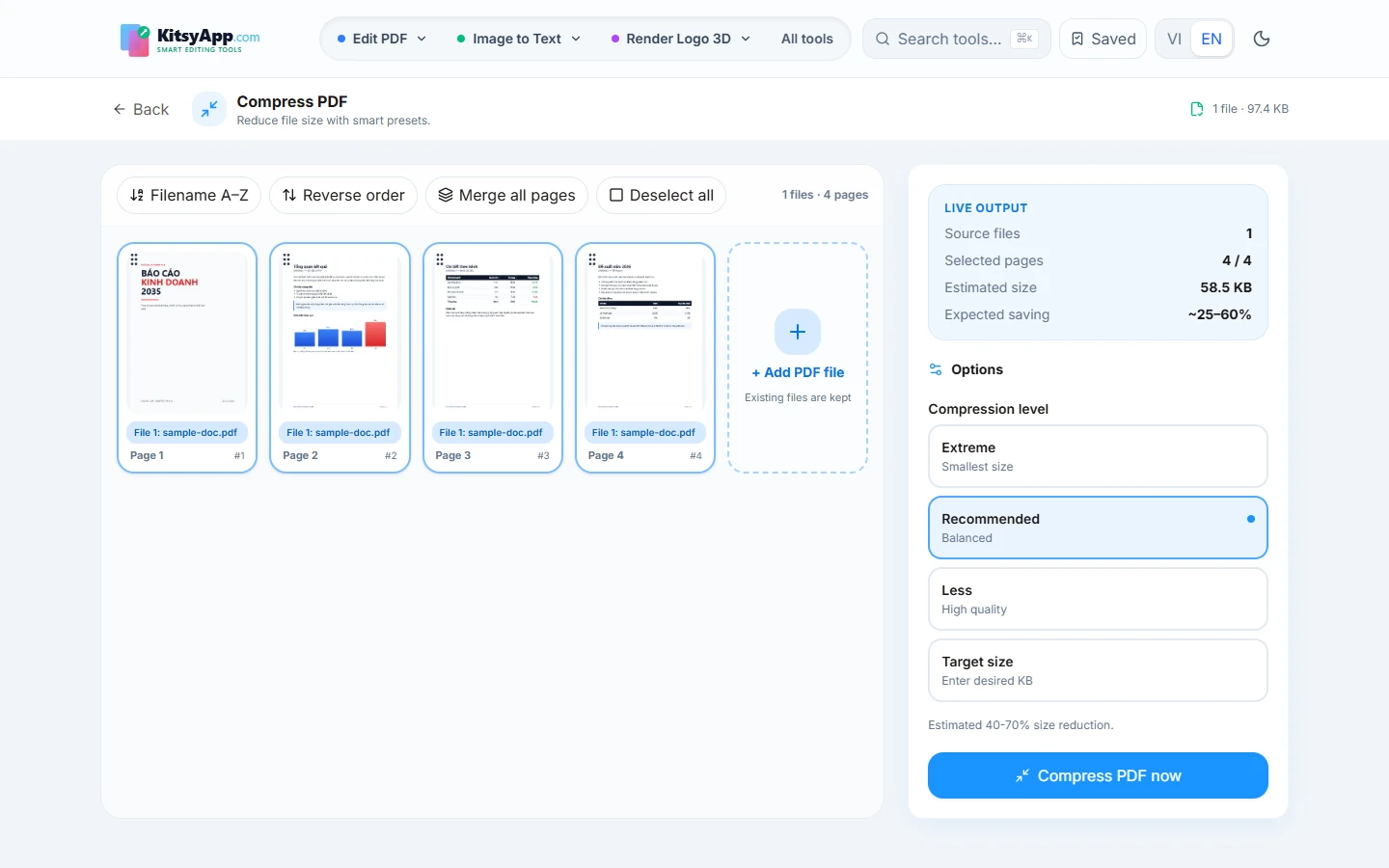
- Compress: reduces file size while keeping page count and page size — use it for email and uploads.
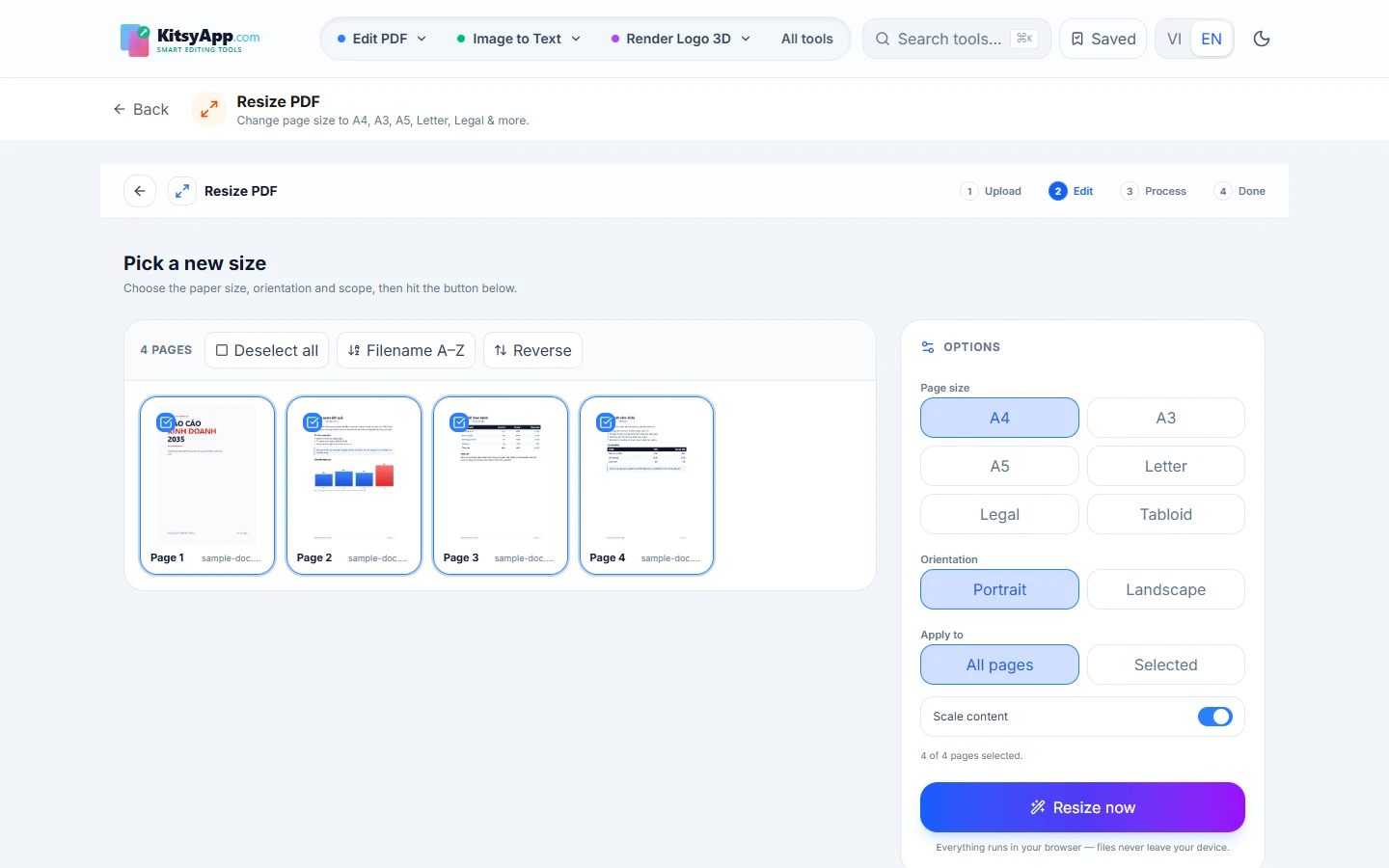
- Resize: changes page dimensions (A4 to A5, or to a specific print size) — use it when margins are off or page sizes are inconsistent.
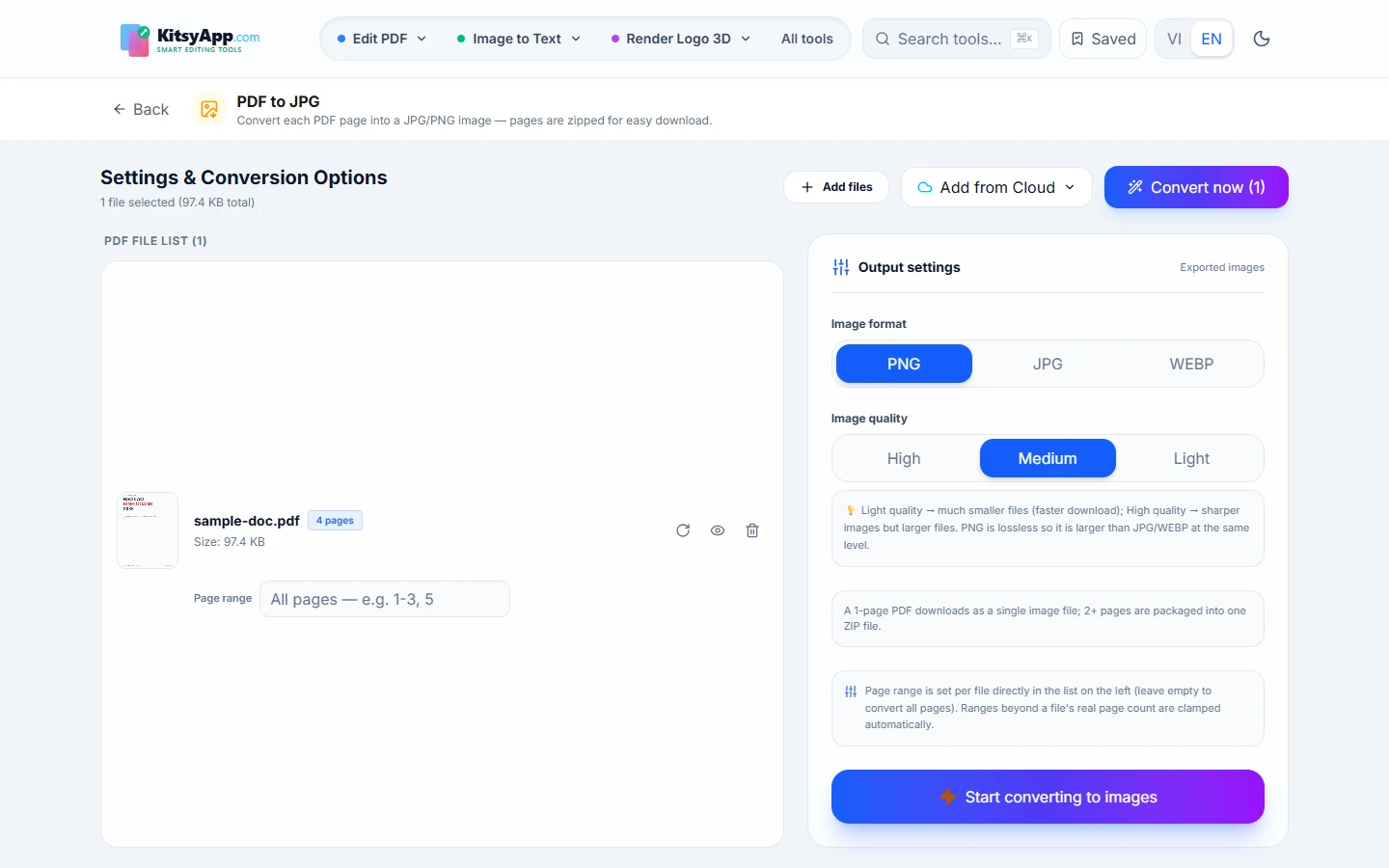
- Export as image: when you need each page as a JPG for slides or a post, instead of sending the whole PDF.
Frequently asked questions
- Will compressing blur the text? — No. Text in a PDF is vector data; image compression does not touch it.
- Can I compress repeatedly? — Compression is lossy for images: each pass discards more. Always compress from the original when you still have it.
- Are files uploaded? — No, everything runs on your device.
- Is it free? — Yes, 100% free with no usage limits and no signup.
Shrink a PDF so it fits in an email, with text still sharp.
Compress PDF →100% free · No limits · No watermark · No signup
Inconsistent page sizes or off margins? Set the right dimensions.
Resize PDF →100% free · No limits · No watermark · No signup
Need each page as a JPG for slides or a post?
PDF to JPG →100% free · No limits · No watermark · No signup