Merge, Split and Organize PDF Files Online
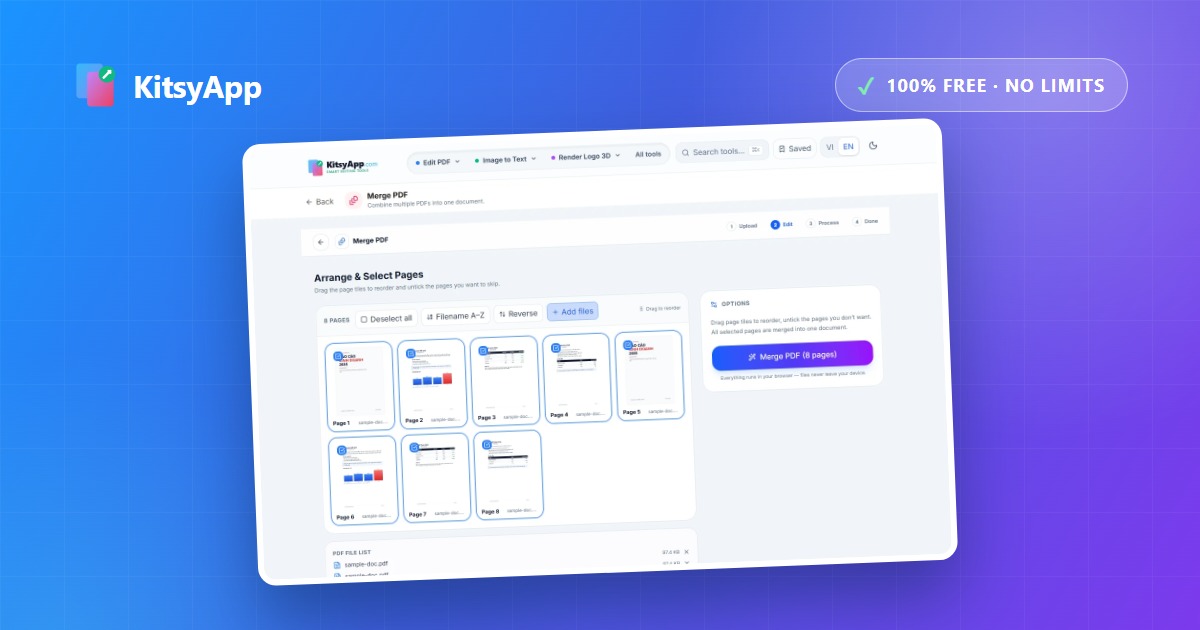
Most PDF work comes down to a handful of moves: combining several files into one to send out, pulling a few pages out of a long report, straightening a page that scanned sideways, dropping draft pages, or splitting a section into its own file. This guide covers all of them, plus the details that decide whether the output is actually usable.
Merging files into one PDF
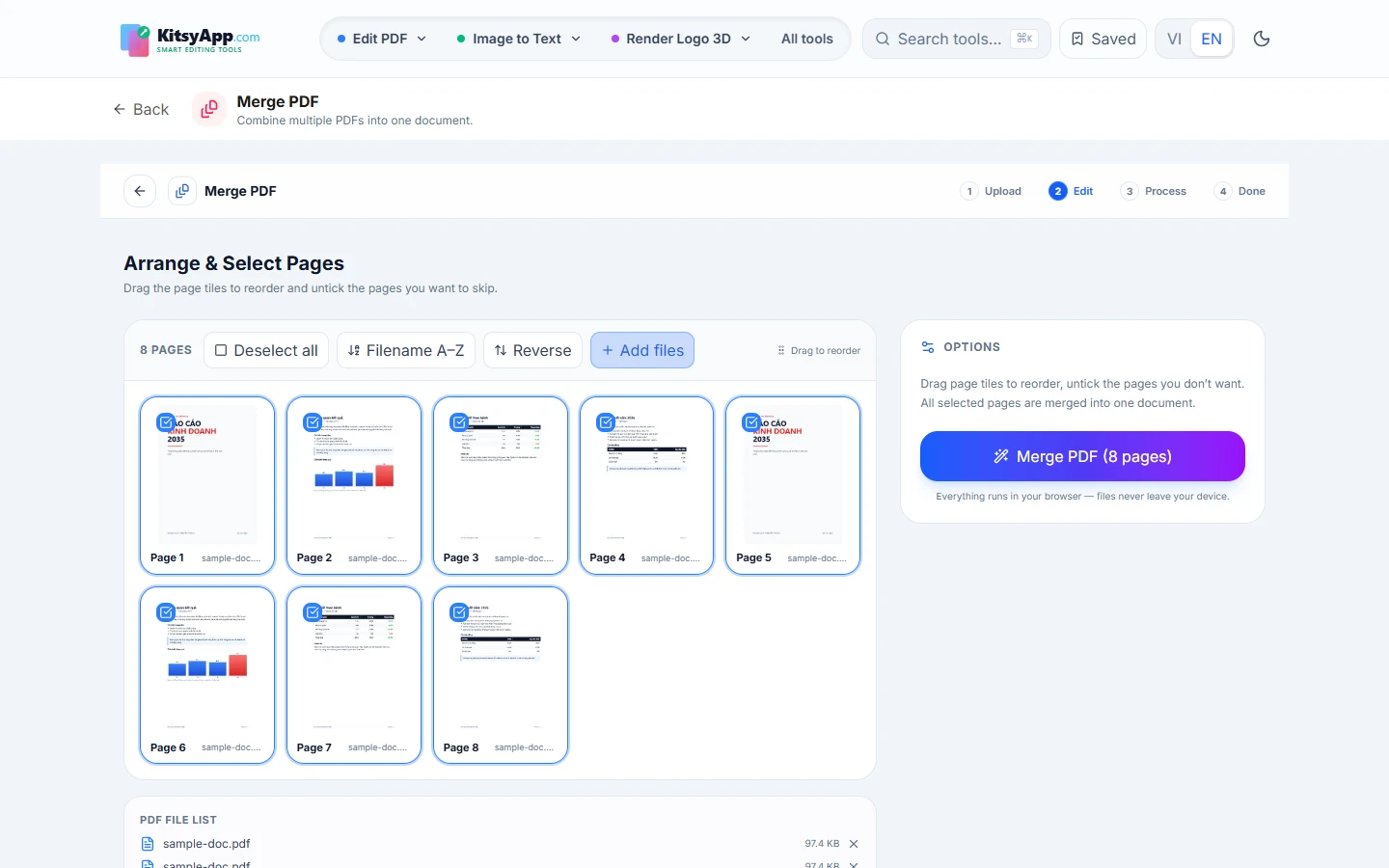
This is the most common task. Drop several files in at once, drag them into the order you want, and export a single PDF. One practical warning: if the files use different page sizes — say A4 mixed with scanned letter pages — normalise them before merging, because mixed page sizes throw off print margins and make the result look unprofessional.
Splitting and extracting pages
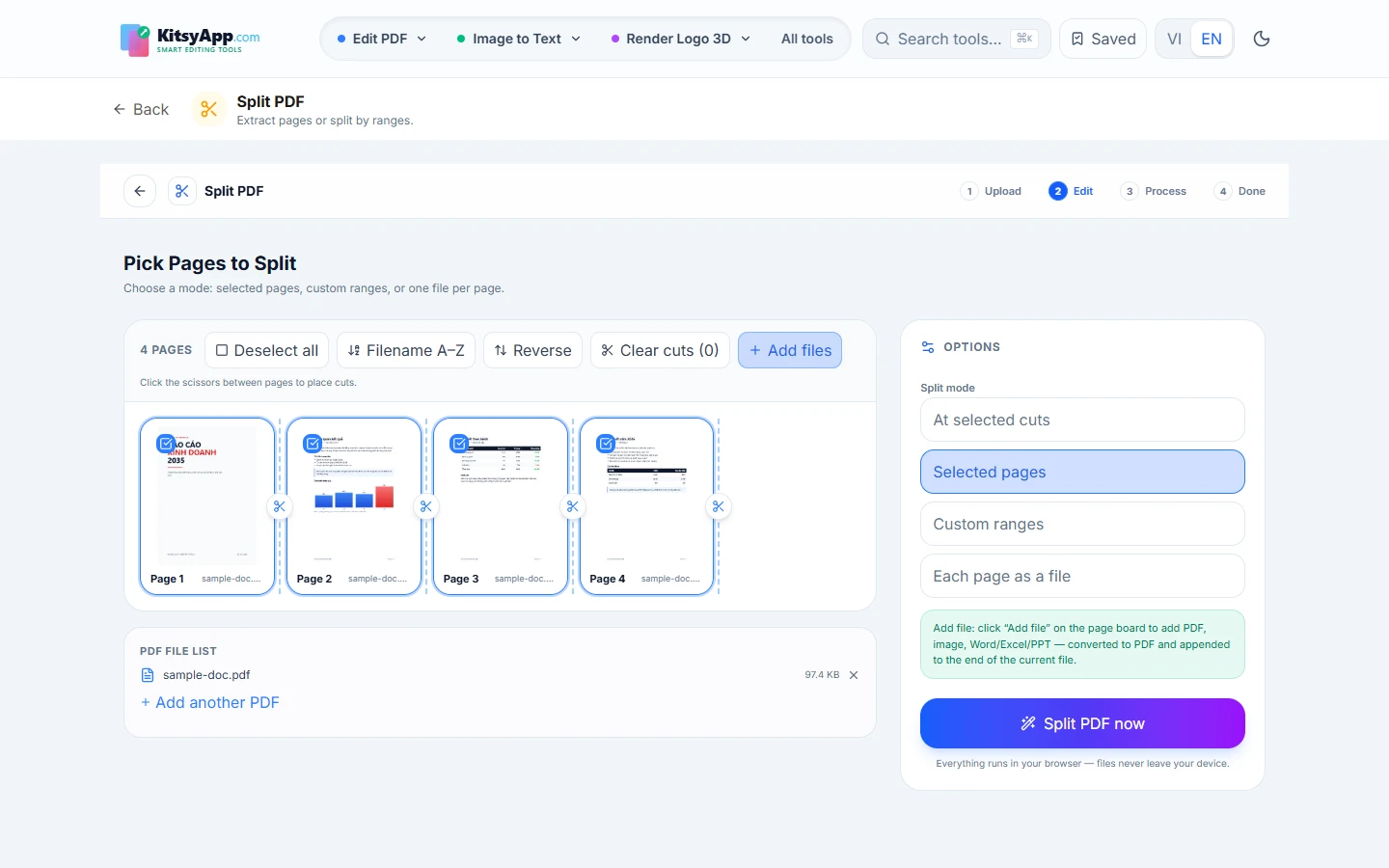
- Split by page range: enter something like 1-3, 5, 8-10 to keep exactly the pages you need. Far quicker than splitting page by page.
- Split into separate files: one file per page, useful when different chapters or invoices go to different people.
- Extract pages: pull out a selection while keeping the original quality, with no intermediate conversion step.
Reordering, rotating and deleting
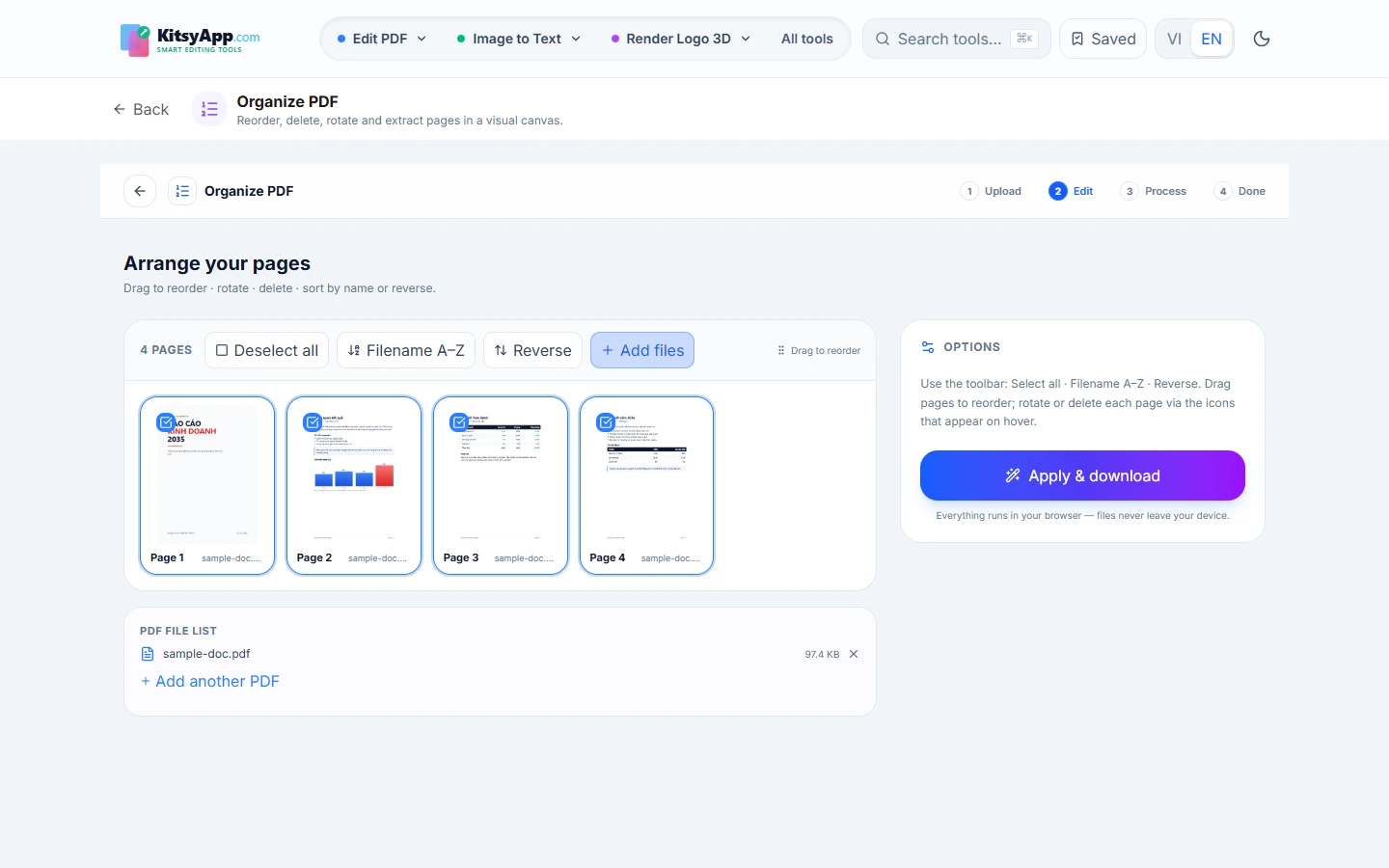
Scans often arrive out of order or with sideways pages. The organizer shows every page as a thumbnail so you can drag them into place; rotate a single page or the whole document when the scan came out wrong. Draft pages, blanks and duplicates can be deleted outright — no need to rescan.
Keeping track of versions
Once a document starts circulating, the real problem becomes knowing which copy you are holding. Before merging or reorganising anything, it is worth comparing the two versions you have to see exactly what changed between them — a changed figure, an added clause, a deleted paragraph. That single check catches far more mistakes than reading both files side by side.
Frequently asked questions
- Are my files uploaded? — No. These operations run on your own device; the document never leaves your machine.
- Does merging reduce quality? — No. Merging and splitting only rearrange pages; nothing is recompressed.
- Is there a file limit? — None. No signup, no watermarks, no daily cap.
- Does it work on a phone? — Yes, it runs in the browser on phones and tablets too.
Combine several PDFs into one file, in the order you arrange.
Merge PDF →100% free · No limits · No watermark · No signup
Need just a few pages? Split by ranges like 1-3, 5, 8-10.
Split PDF →100% free · No limits · No watermark · No signup
Pages out of order? Drag thumbnails into the right sequence.
Organize PDF →100% free · No limits · No watermark · No signup
Sideways or upside-down page? Rotate individual pages.
Rotate PDF →100% free · No limits · No watermark · No signup
Remove draft, blank and duplicate pages from a document.
Delete PDF Pages →100% free · No limits · No watermark · No signup
Pull a section out as its own file at original quality.
Extract PDF Pages →100% free · No limits · No watermark · No signup
Two versions in circulation? See exactly what changed between them.
Compare PDF →100% free · No limits · No watermark · No signup